Frequently asked questions
Tap a question to read the answer.
-
My Gig Calendar is an online application built to book and manage gigs. The end goal is to save band leaders and managers time, and to make booking gigs easier and less error prone.
Users of My Gig Calendar can:
- invite musicians to gigs over SMS/Email and manage the responses
- send vital gig information (where, when, pay) to all musicians with a single click
- reliably track gigs, including the personnel on each one
- track the pay status for each musician on each gig
- run CSV exports of musician data to help with taxes or bookkeeping
-
Your home page splits your gigs into three sections.
- Gig Invitations: gigs somebody else booked you for that you have not answered yet. Accept or reject them right from the card.
- Leader Gigs: the gigs you booked. These are yours: you pick the musicians and the pay, and you can edit, copy or delete them.
- Side Musician Gigs: gigs you accepted an invitation to. Somebody else runs those; you are on the band.
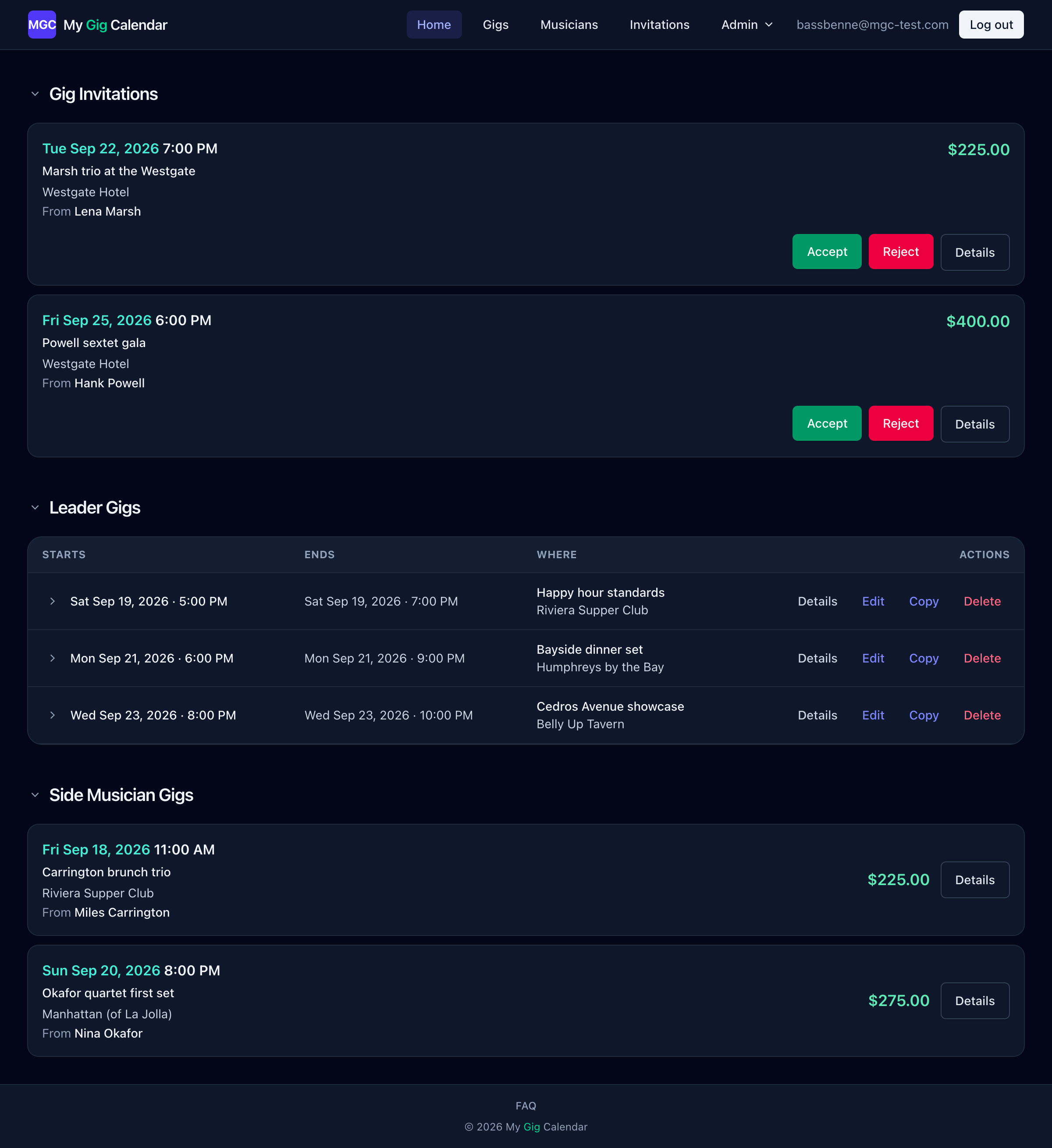
Invitations to answer, the gigs you lead, and the gigs you play on. Enlarge Every leader gig row has an arrow on its left. Open the row to see everyone you invited, how each of them answered, and whether they have been paid, without leaving the page. The Pay button marks a musician as paid on the spot.
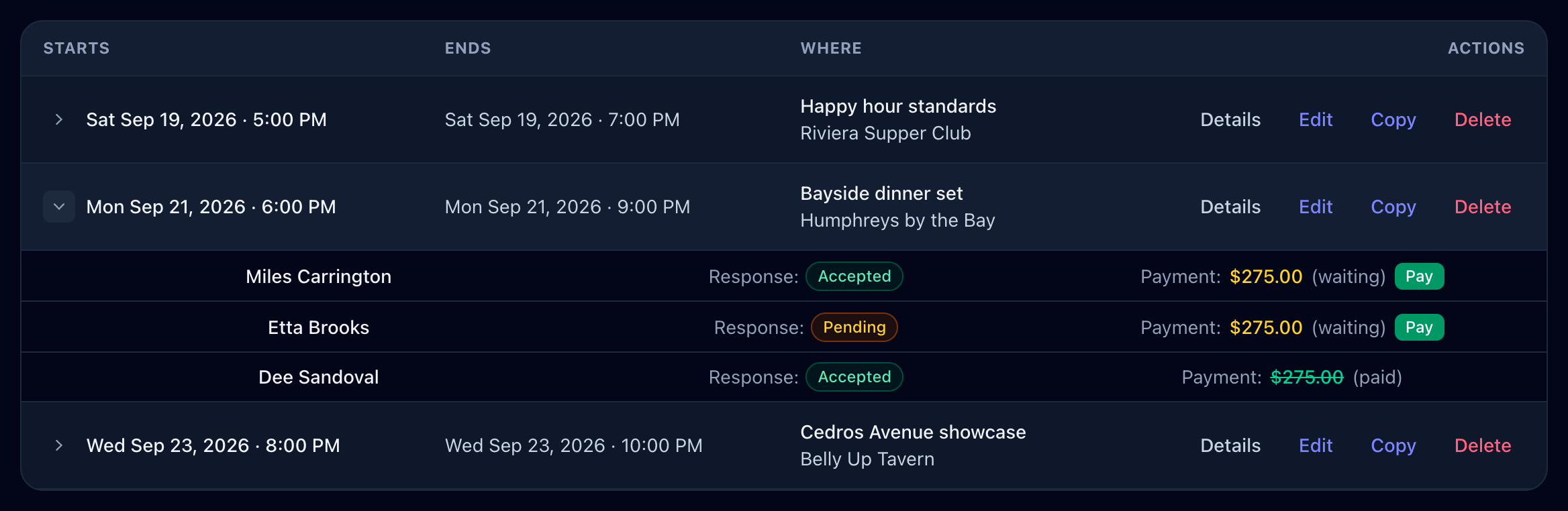
One tap on the arrow shows the whole band, their answers, and what is still owed. Enlarge -
Go to Musicians, choose Add a musician, and look them up by phone number.
My Gig Calendar only books musicians who have an account, so the number has to match one. Signing up is free, so if somebody you work with is not on it yet, encourage them to register. Once you have added a musician, they appear in the musician list on every gig form.
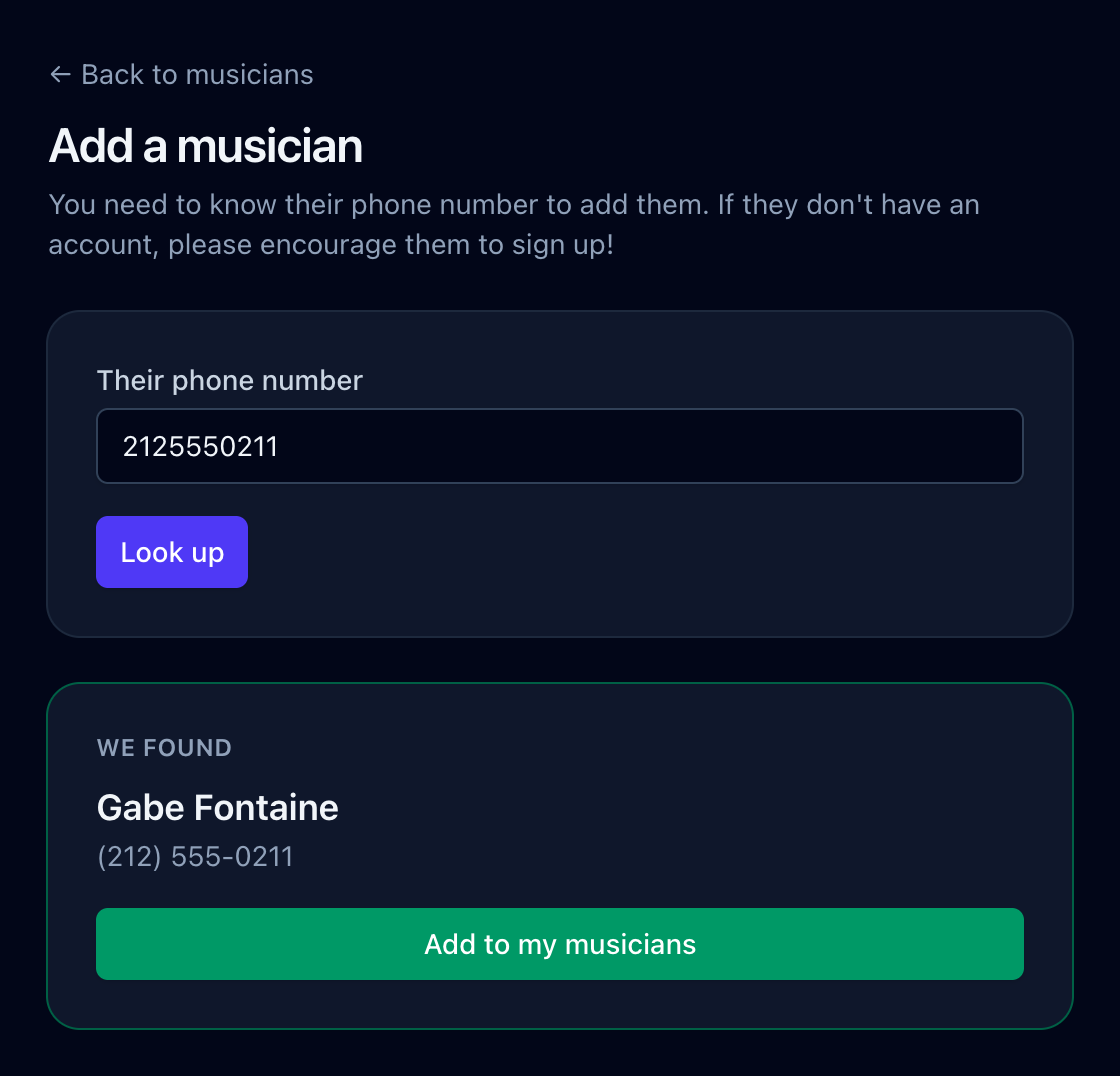
Look a musician up by phone number, then add them to your musicians. Enlarge -
Go to Gigs and choose New gig. One form covers when the gig starts and ends, where it is, and what the whole band should know.
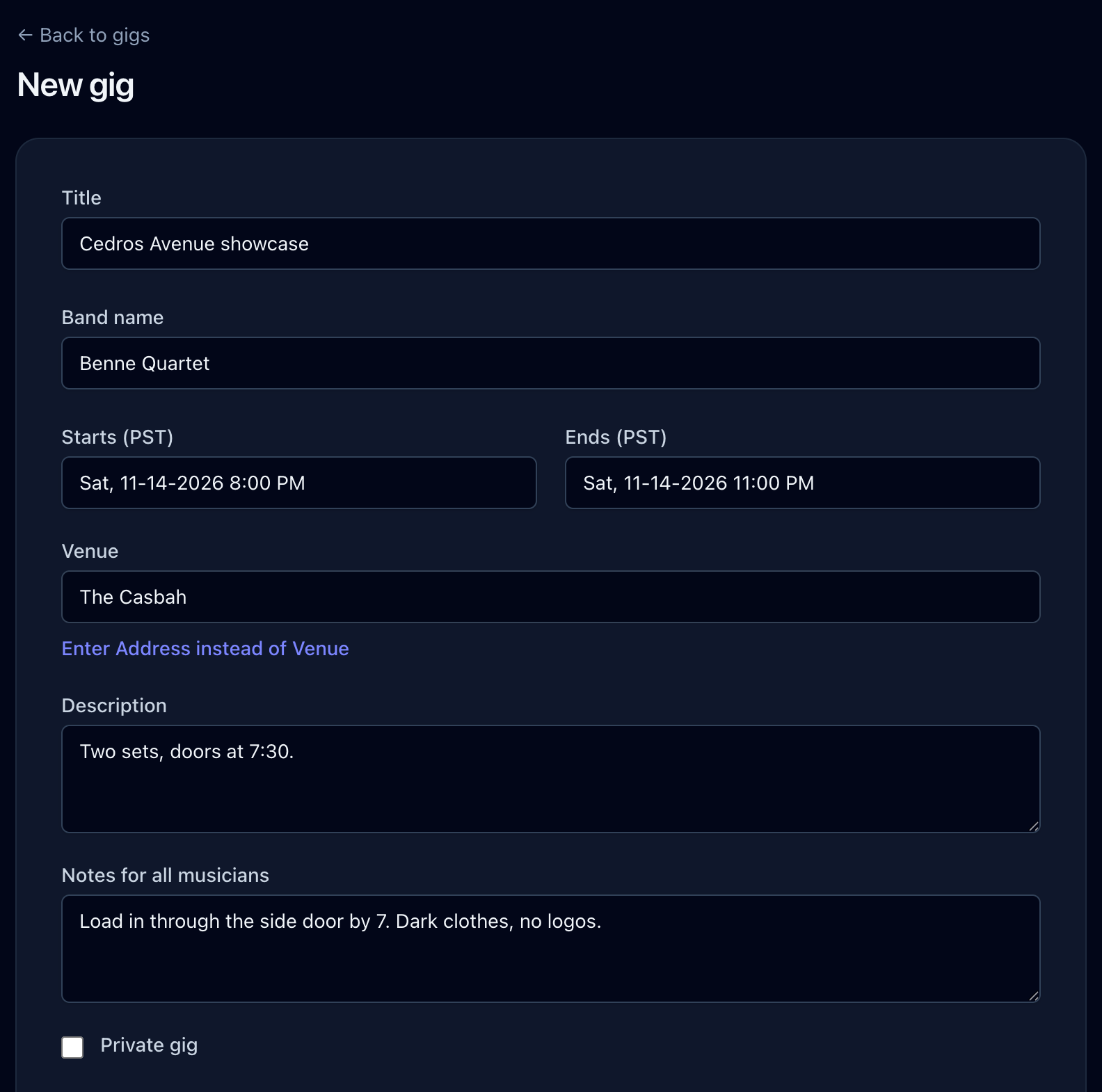
The date, the venue, and notes that go out to the whole band. Enlarge Then add a row for each musician you want on the gig. A row carries that musician's own pay and a note only they will see, so everybody can be on different money and different instructions.
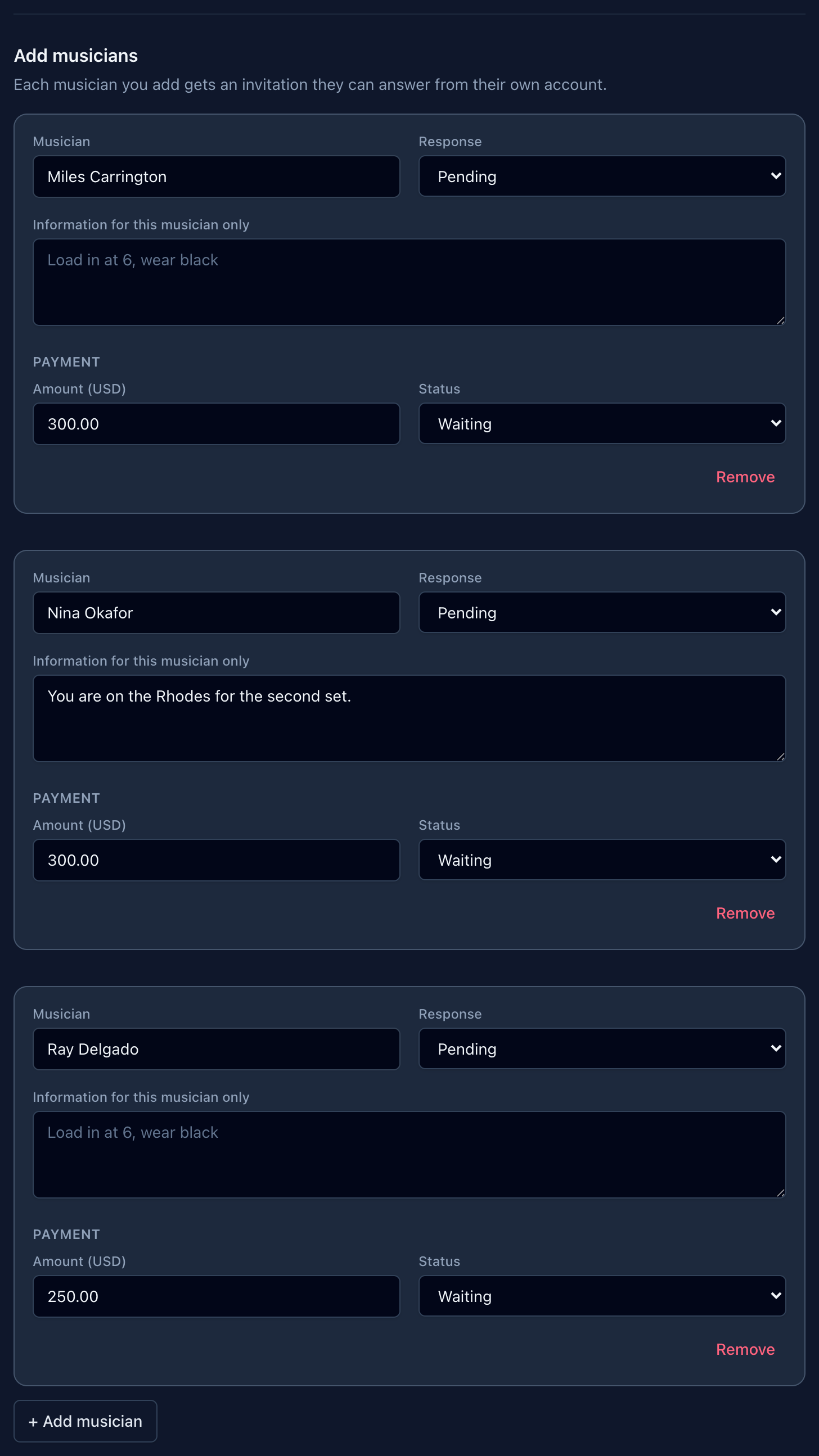
Pay and private instructions are set per musician, not per gig. Enlarge Invitations go out as soon as you save
Creating the gig sends every musician on it an invitation right away, by text message, by email, or both, depending on how each of them has chosen to be reached. Add a musician to the gig later and they are invited when you save that change. Nobody is ever invited to a gig whose date has already passed.
A gig you start with the Copy button arrives with the whole band already on it, so that form opens with a warning naming everyone who is about to be invited. Remove anybody who should not be on this one before you save.
Responses update themselves
When a musician answers their invitation, their response flips to Accepted or Declined on its own. You can also set it by hand on the gig's edit form, which is what you want when somebody tells you in person instead of tapping the link.
Pay status is always manual
My Gig Calendar tracks money rather than moving it, so a payment stays on Waiting until you say otherwise. Mark it Paid with the Pay button on the expanded home page row, or from the gig's edit form.
The gig's own page gathers all of it in one place.
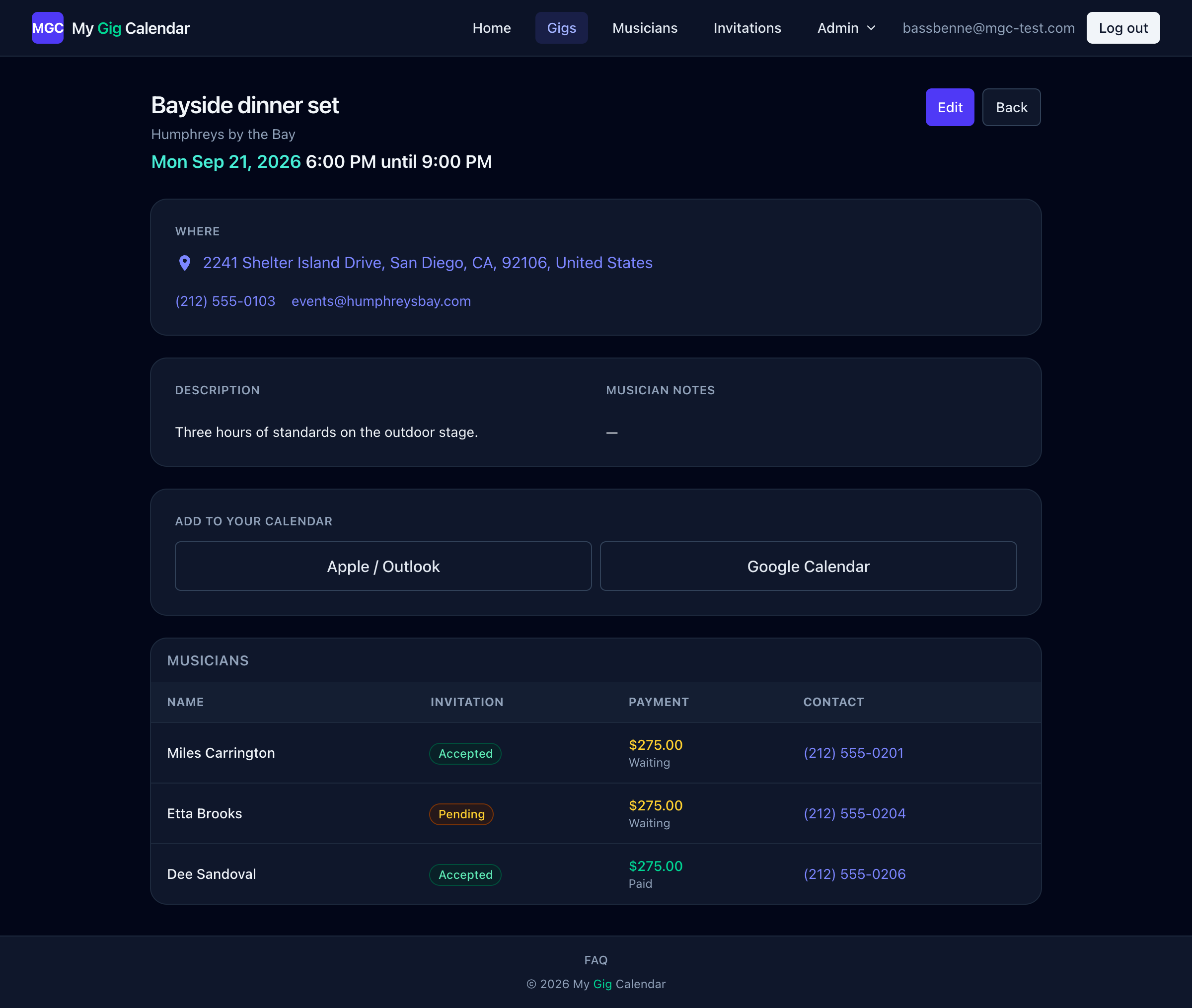
Who is on the gig, who has answered, and who has been paid. Enlarge -
An invitation reaches you as a text message, an email, or both, and the link in it opens the invitation itself. You can always get back to it from Invitations, or from the Gig Invitations section of your home page.
Everything you need in order to answer is on that page:
- when the gig starts and ends
- the address, as a link that opens the spot in Google Maps
- your pay for this gig
- the leader's notes for the band, plus anything they wrote just for you
- a one-tap add to Apple, Outlook or Google Calendar
Answer with YES or NO at the bottom, and the leader sees it immediately. Changed your mind? Open the invitation again and pick the other one.
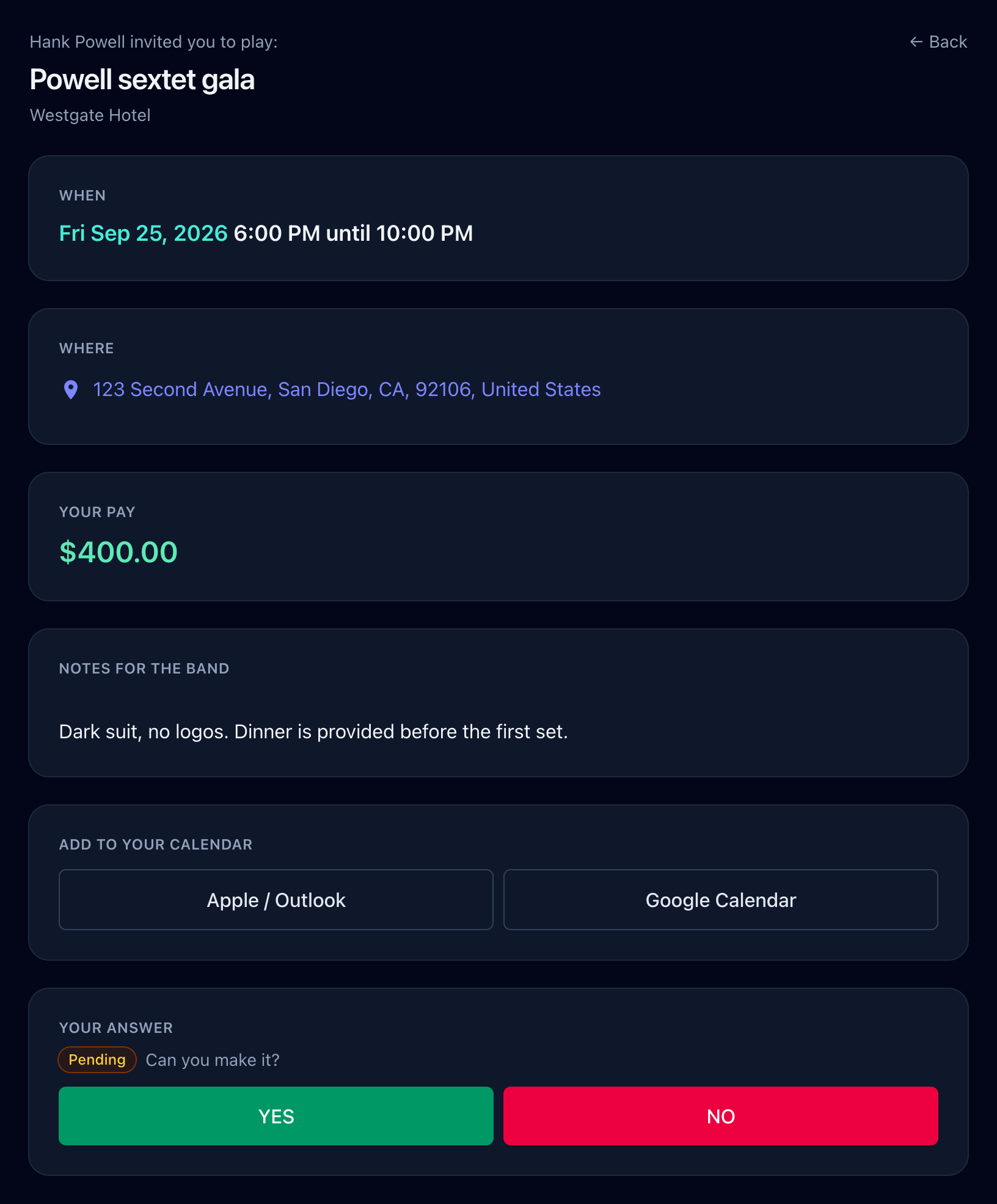
The whole gig, and the two buttons that answer it. Enlarge